> ## Documentation Index
> Fetch the complete documentation index at: https://docs.chift.eu/llms.txt
> Use this file to discover all available pages before exploring further.
# Local agents
Local agents are used for on-premise connectors that cannot be accessed through the cloud.
Chift has developed a local agent that can be run on on-premise connectors' servers and that acts as a proxy between your server and Chift's infrastructure. This makes it possible to expose an API on top of those connectors.\
This is typically used for connectors like Winbooks, Sage 100, Sage 50, etc.
## How it works
The local agent does not require any specific network configuration. It connects to Chift's cloud infrastructure and does not expose any port to the internet.
## Setting up a local agent
Typically the process to set up a local agent is the following:
1. The consumer visits the public connection page of a connector and clicks on "Connect".
2. The consumer can download a zip file or send a link to this zip file to another person (useful when the installation needs to be done by a third-party)
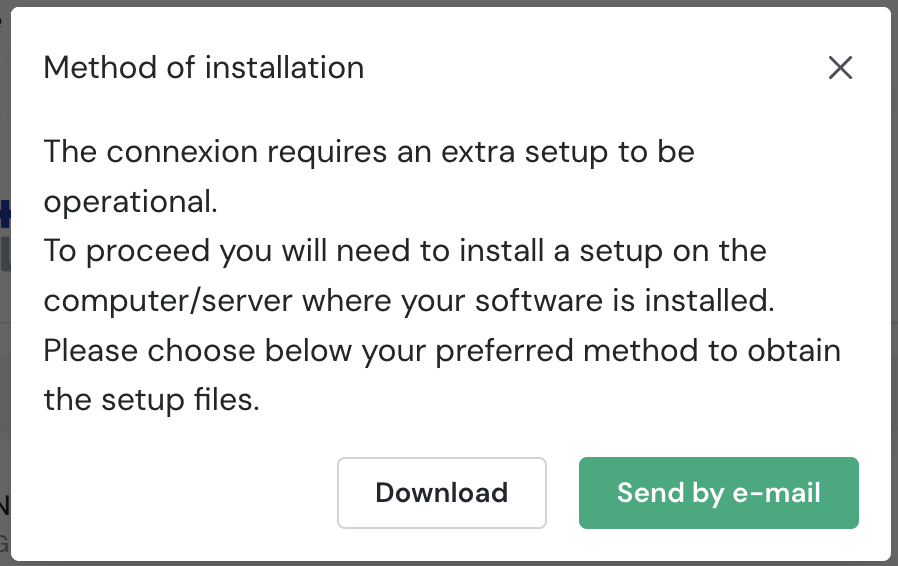 3. At this moment the consumer has a connection which is not yet operational.
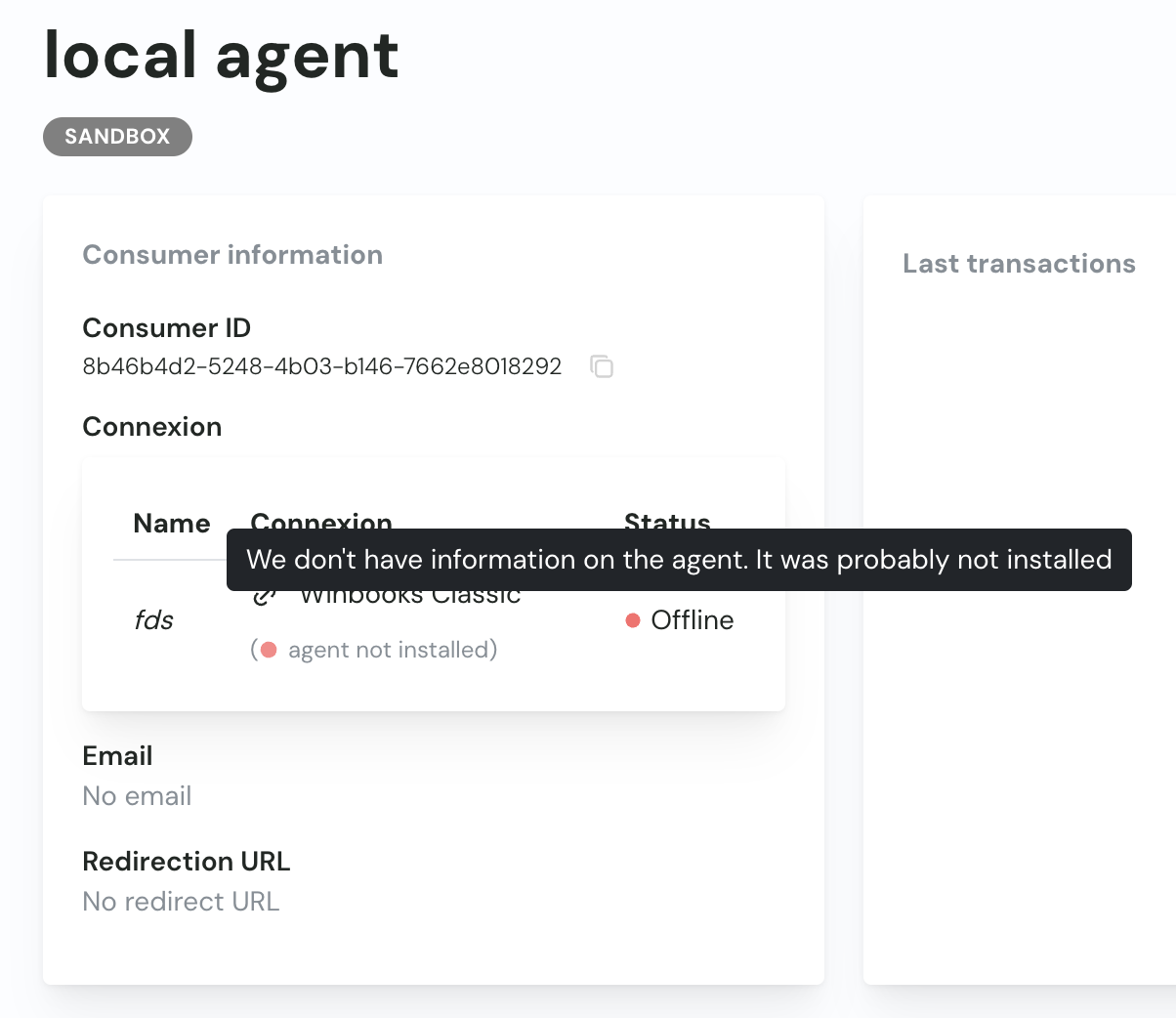 4. The consumer or their technical contact extracts the zip file and installs the `Setup.exe` file (alongside a settings.json file containing the information related to this specific connection).
This installs a Windows service on the server on which the connector is running that acts as a bridge with Chift.
5. Once the service is installed, the connection becomes green on the consumer's dashboard and you can execute requests.
6. At any time, you can see the status of the local agent and its latest heartbeat. You can also configure webhooks to be notified of the local agent's status.
For every connector, you will find specific documentation in the connector's documentation and as well in the end-user connector's documentation to ease the process of installation.
## Monitoring a local agent
Through the Chift dashboard, you can see the status of the local agent and its latest heartbeat (sent every 15-20 minutes).\
On a consumer's page, you can see whether the agent is:
* Online and operational: green
* Offline: orange (it's installed but not running currently)
* Offline: red (the service is not installed)
Because a local agent might be down, we recommend using a retry mechanism or implementing webhooks.
## Cockpit
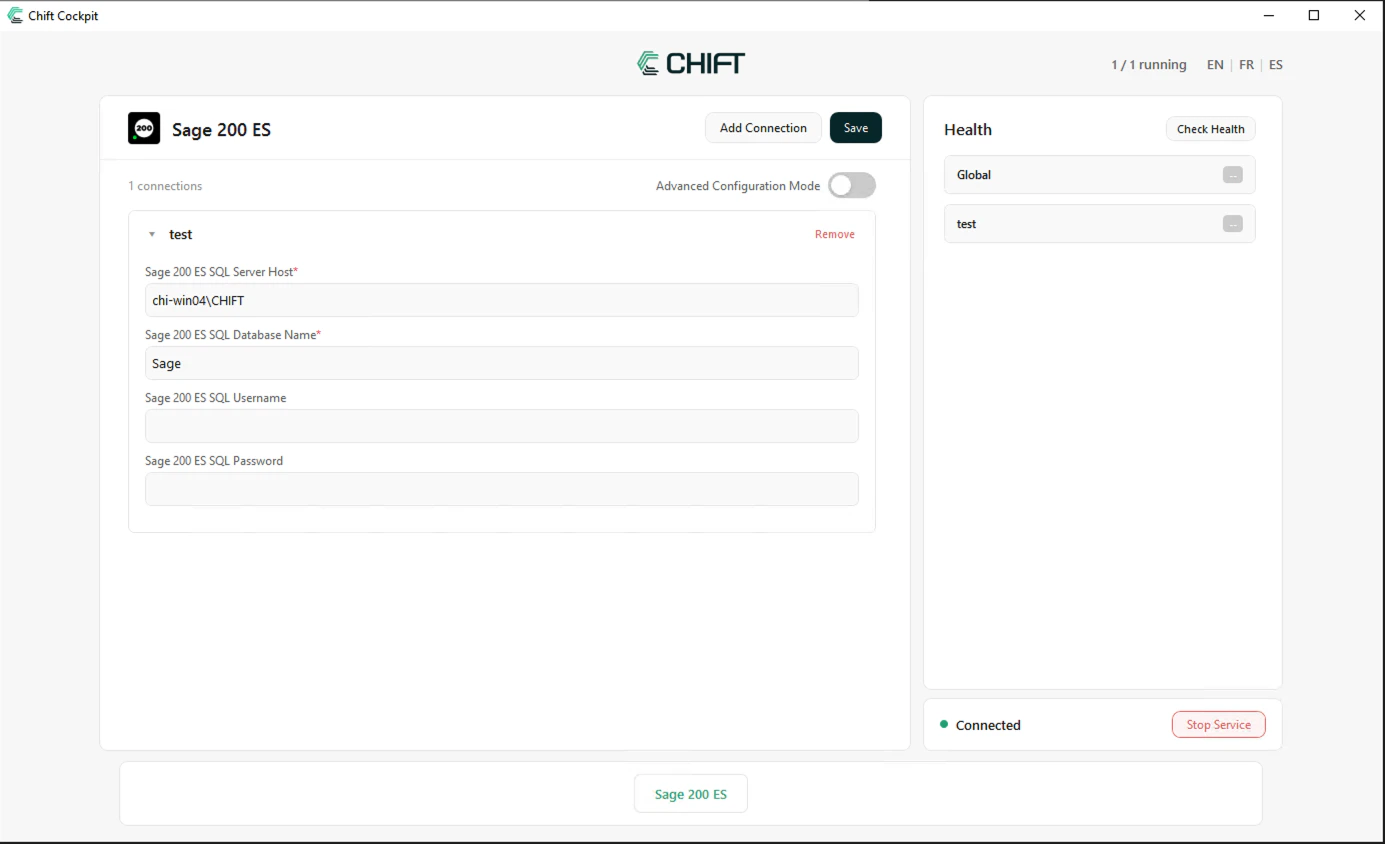
You can use the **Chift Cockpit** to configure your connections running on an on-premise server (or computer).
You can find more information on how it works [here](https://help.chift.app/articles/4765527643-local-agent-cockpit-user-guide?lang=en)
4. The consumer or their technical contact extracts the zip file and installs the `Setup.exe` file (alongside a settings.json file containing the information related to this specific connection).
This installs a Windows service on the server on which the connector is running that acts as a bridge with Chift.
5. Once the service is installed, the connection becomes green on the consumer's dashboard and you can execute requests.
6. At any time, you can see the status of the local agent and its latest heartbeat. You can also configure webhooks to be notified of the local agent's status.
For every connector, you will find specific documentation in the connector's documentation and as well in the end-user connector's documentation to ease the process of installation.
## Monitoring a local agent
Through the Chift dashboard, you can see the status of the local agent and its latest heartbeat (sent every 15-20 minutes).\
On a consumer's page, you can see whether the agent is:
* Online and operational: green
* Offline: orange (it's installed but not running currently)
* Offline: red (the service is not installed)
Because a local agent might be down, we recommend using a retry mechanism or implementing webhooks.
## Cockpit
You can use the **Chift Cockpit** to configure your connections running on an on-premise server (or computer).
You can find more information on how it works [here](https://help.chift.app/articles/4765527643-local-agent-cockpit-user-guide?lang=en)