> ## Documentation Index
> Fetch the complete documentation index at: https://docs.chift.eu/llms.txt
> Use this file to discover all available pages before exploring further.
# PMS sync
This sync lets you sync PMS orders and payments with accounting software.
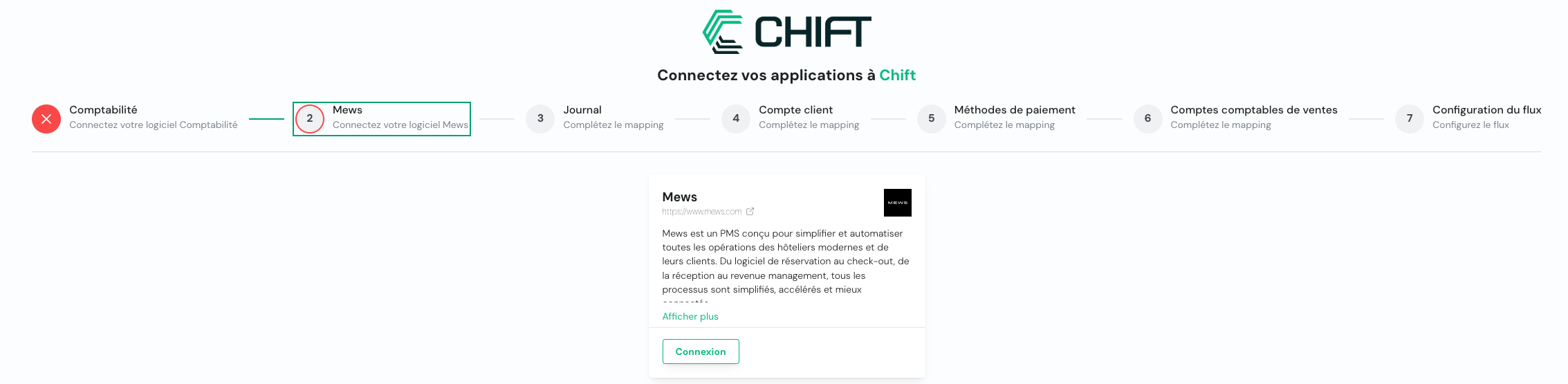 ### Default scope
This integration sync automates PMS accounting (also called Property Management System), making manual exports unnecessary.
The integration imports sales and payments entries into accounting on the frequency defined in the configuration (daily, weekly or monthly).
The integration supports management of different payment methods, product categories and/or VAT rates.
The accounting entries are created in the accounting journal specified in the configuration.
You can choose whether to have:
* a single entry per period
* a single entry per invoice
A specific period is only imported if the period is closed (max 7 days or defined in the configuration of the software)
### Mappings
Mappings define how data from the PMS software maps to the accounting software.
Connect your accounting tool through API key, credentials or OAuth2.
Connect your property management system tool through API key, credentials or OAuth2.
Specify the accounting journal in which to create accounting entries
### Default scope
This integration sync automates PMS accounting (also called Property Management System), making manual exports unnecessary.
The integration imports sales and payments entries into accounting on the frequency defined in the configuration (daily, weekly or monthly).
The integration supports management of different payment methods, product categories and/or VAT rates.
The accounting entries are created in the accounting journal specified in the configuration.
You can choose whether to have:
* a single entry per period
* a single entry per invoice
A specific period is only imported if the period is closed (max 7 days or defined in the configuration of the software)
### Mappings
Mappings define how data from the PMS software maps to the accounting software.
Connect your accounting tool through API key, credentials or OAuth2.
Connect your property management system tool through API key, credentials or OAuth2.
Specify the accounting journal in which to create accounting entries
*Reproduce this step by using the following API call(s) :*
GET journals
* When you create one entry per period, this is the client account you use to balance your accounting entries.
* When you create one entry per invoice, this is the default client account you use for your invoices if the account is not specified in the client's invoice (configuration to be done in the PMS software).
*Reproduce this step by using the following API call(s) :*
GET chart of accounts
*(Filter on class 4 accounts)*
Select the accounting account for each payment method (credit card, cash, etc.)
*Reproduce this step by using the following API call(s) :*
GET Payment methods
GET chart of accounts
*(Filter on class 4 and 5 accounts)*
Define how revenue is classified.\
You have to select an accounting account next to each accounting category.
*Reproduce this step by using the following API call(s) :*
GET Accounting categories
GET chart of accounts
*(Filter on class 4 and 7 accounts)*
### Configuration
1. This final step allows you to specify the synchronization start date: choice of the date from which Z tickets are synchronized.
Synchronization starts automatically each night (at 6 AM).
2. Choose between one aggregated entry per period or one entry per invoice