

Overview legend
Overview legend
Introduction
QuickBooks allows you to keep track of financial functions like income and expenses, employee expenses and inventory in real-time and fulfill tax obligations hassle-free. Deliver the QuickBooks integration your customers want in no time.Configure QuickBooks
Prerequisite(s)- Create an app on QuickBooks
- Submit your app for approval (this step is only required if you want your app to be publicly available)
- Activate the QuickBooks integration on the Chift platform
- Create an account - here
- Create your APP in QuickBooks in the developer’s portal following these guidelines:
- Log in to QuickBooks
- Click on
CREATE AN APP - Select
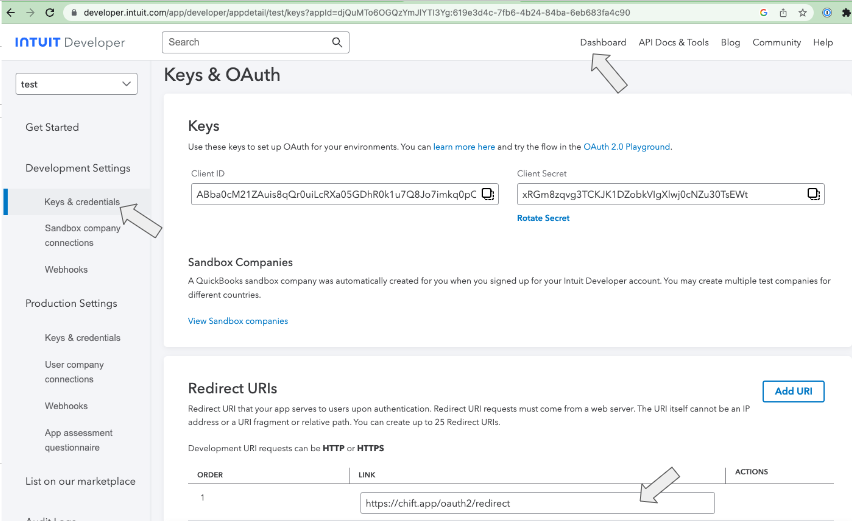
com.intuit.quickbooks.accountingscope - Enter a unique name and fill https://chift.app/oauth2/redirect in the field
Redirection URLs - Select all permissions
- Click on
SAVE CHANGES - Keep your
Client IDandClient Secretsafe because you won’t be able to see them again. - You will need the
Client IDandClient Secretafterwards
Test QuickBooks
To test the software integration, you can create a free account on QuickBooks - hereConnect QuickBooks
To activate a connection with QuickBooks, users will have to go through the following steps.- French article: Help Center - QuickBooks FR
- English article: Help Center - QuickBooks EN
Limitations & exceptions
- You can only connect to one of your companies per consumer (one consumer = one company).
- Draft invoices are not available.
- Opportunities/deals are not present.