

Accessing the API Explorer
You can access the API Explorer in two ways:1. From the sidebar
Click the API Explorer button at the bottom of the sidebar. This opens the API Explorer without any pre-filled context. You will need to select an operation, consumer, and connection manually.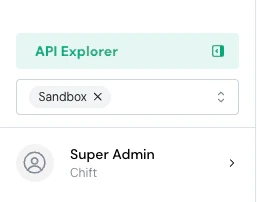
API Explorer button in the sidebar
2. From a consumer’s page
Navigate to a consumer and click the API Explorer button in the top right corner of the page. When opened this way, the consumer and connection are automatically pre-filled based on the current consumer, so you can start testing right away.
API Explorer button on the consumer's page
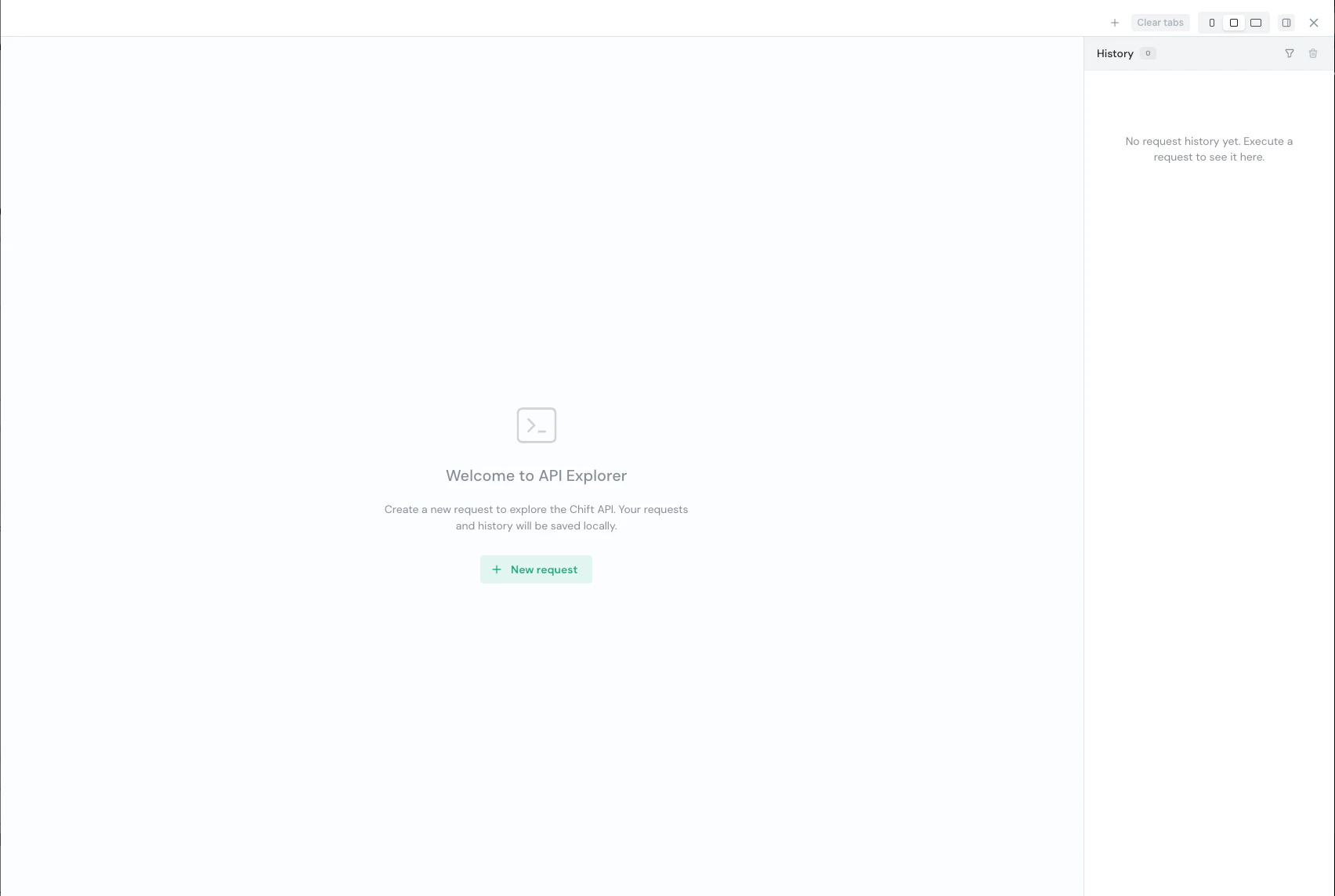
Welcome screen of the API Explorer
Selecting and executing a request
- Click + New request to create a new request tab
- Use the operation selector to select the endpoint you want to test. Operations are grouped by tags and displayed with their HTTP method and summary. You can search by operation name, path, or tag.
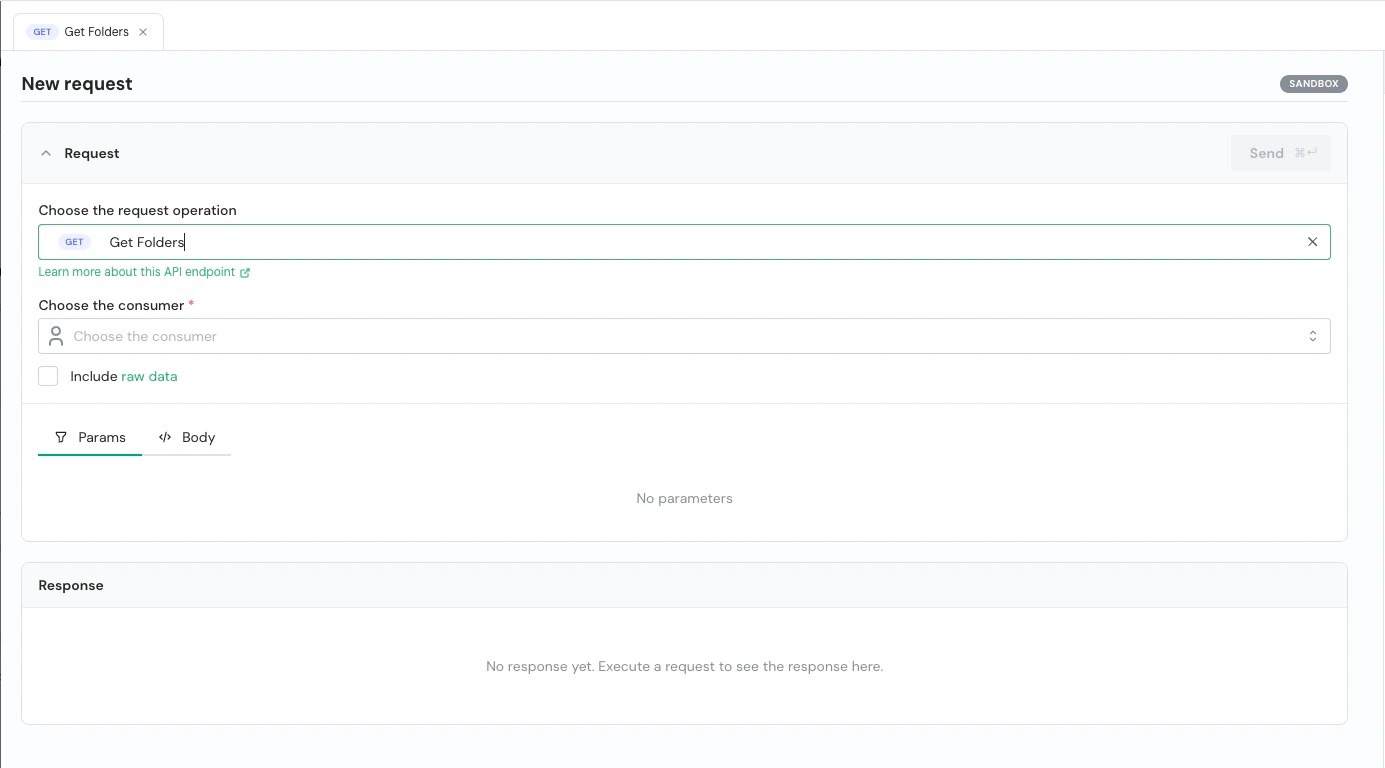
Selecting a GET operation in the API Explorer
- Select the consumer and connection to use. The available operations and consumers are filtered dynamically:
- When a consumer is selected, only operations matching the consumer’s connected APIs are shown
- When an operation is selected, only consumers that support this API are listed
- The connection dropdown adapts based on available connections:
- If only one connection matches the endpoint, it is auto-selected and the dropdown is grayed out
- If multiple connections of the same type are available, the dropdown is active and lets you switch between connectors
- You can optionally enable the Include raw data option. When enabled, the raw response from the target connector is included, allowing you to compare it directly with the processed data. This option is only available for GET endpoints.
- Fill in the required parameters in the Params tab, and provide the request’s body in the Body tab when applicable (a sample body is auto-populated from the API schema when available)
- Click Send to execute the request (or use the keyboard shortcut Cmd+Enter on Mac / Ctrl+Enter on Windows)
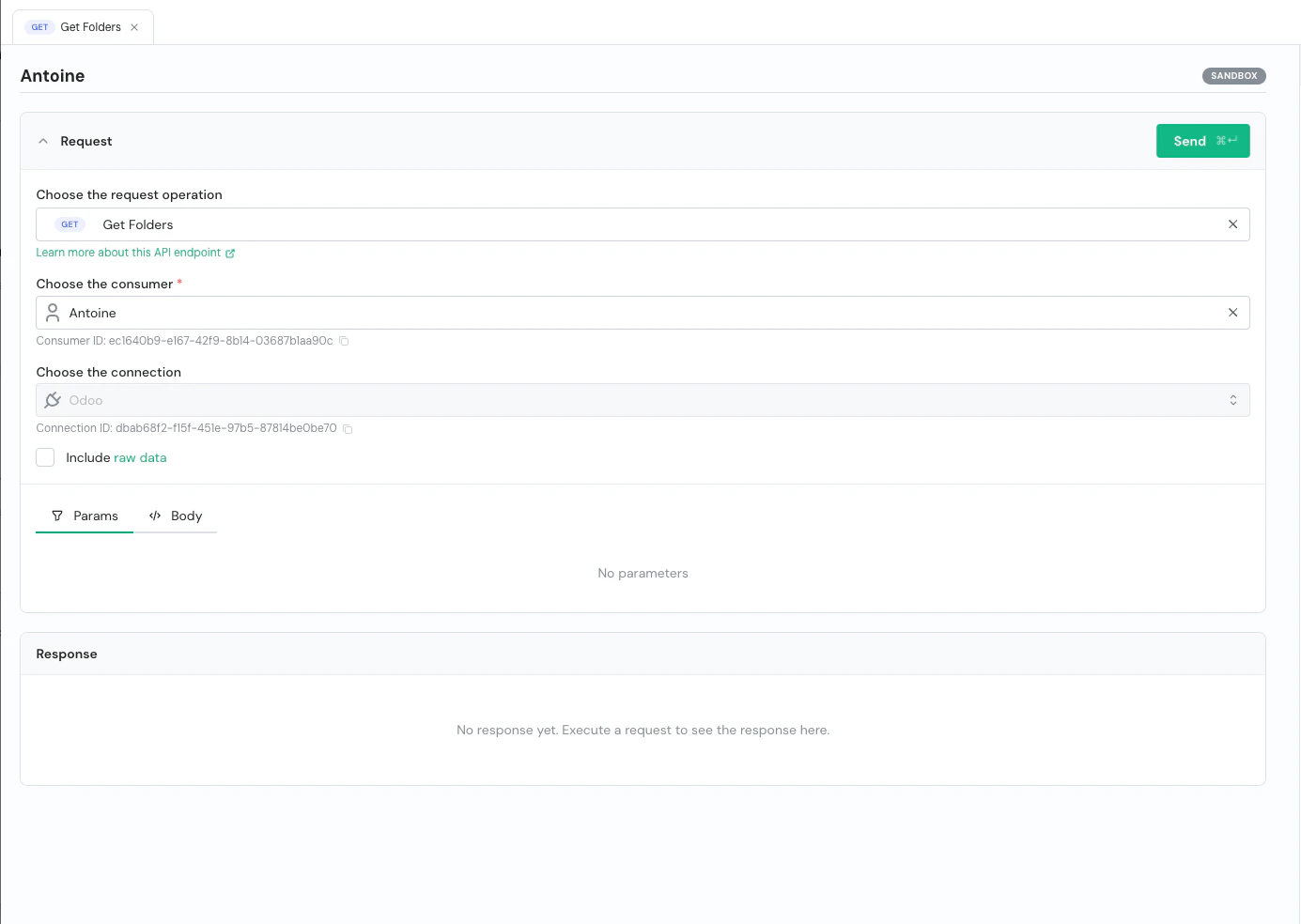
Request ready to execute with consumer and connection selected
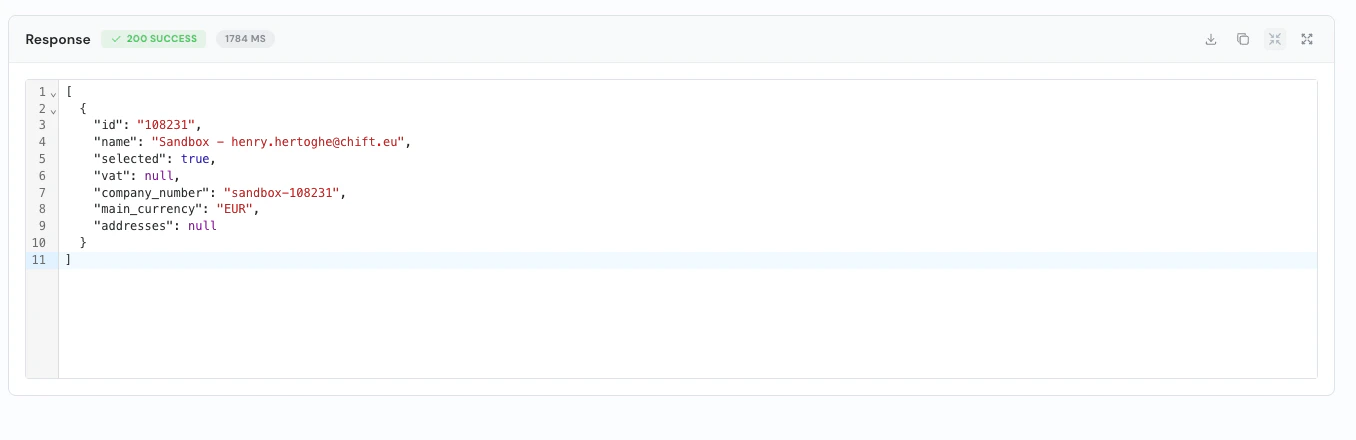
Response panel showing a 200 SUCCESS result
Multi-tab support
You can open multiple request tabs simultaneously, allowing you to work on different endpoints or compare responses side by side. Each tab displays the HTTP method and operation name, and can be closed individually. Tabs persist across sessions so you can pick up right where you left off.
Multiple request tabs open in the API Explorer

Tab bar with add, clear, resize and close controls
Request history
Every executed request is automatically saved in the History sidebar on the right side of the API Explorer. Each entry includes:- HTTP method and path
- Status code
- Consumer and connection name
- Environment (Sandbox / Production)
- Timestamp

History sidebar
Filtering history
Click the filter icon in the History header to reveal the filter panel. You can combine multiple filters to quickly find past requests:- Search bar — Search by operation name, path, consumer name, or connection name
- Consumer filter — Click the user icon to filter by a specific consumer
- HTTP method — Toggle one or more method badges: GET, POST, PUT, PATCH, DELETE
- Status category — Toggle one or more status badges: 2XX (success), 4XX (client error), 5XX (server error)
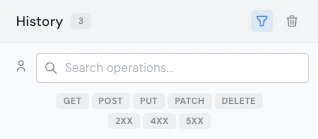
History filter panel with search, method and status filters
Replaying transactions
You can replay any transaction directly from the transaction detail view:- Navigate to the Transactions section
- Click on the transaction you want to inspect
- Review the request details (method, path, parameters, headers)
- Click Open in Explorer to load the transaction in the API Explorer with all parameters pre-filled
- Modify any parameters if needed, then click Send
When replaying a transaction, any connector-specific query parameters that are not part of the standard API specification are displayed in a read-only info box for reference.
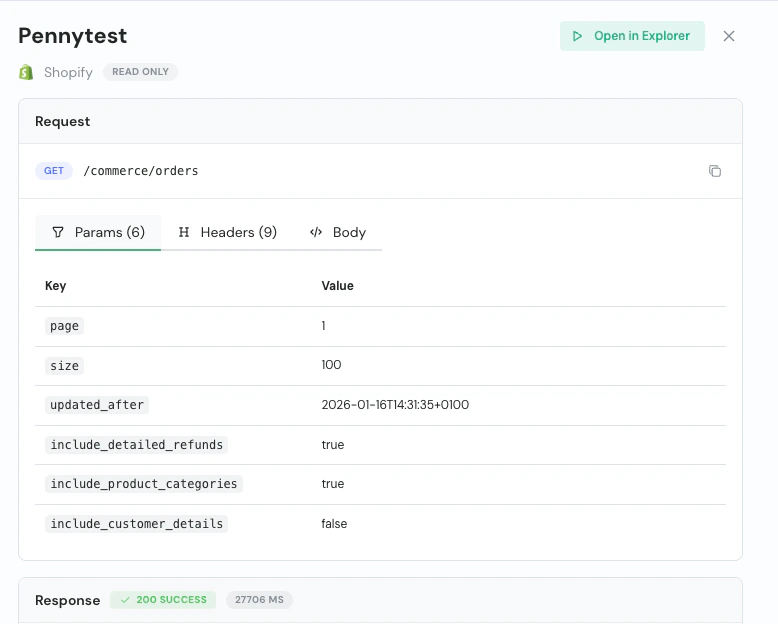
Transaction detail view with the Open in Explorer button
Raw data
You can optionally enable the Include raw data option on GET endpoints. When enabled, the raw response from the target connector is included alongside the unified Chift response, allowing you to compare it directly with the processed data. This is useful for debugging or when you need to access connector-specific fields not included in the unified model.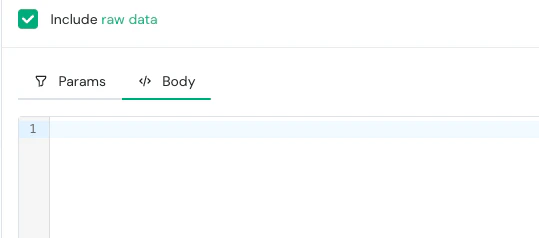
Include raw data checkbox and body editor
On production environments, the raw data option is only available for accounts with the raw data premium feature enabled.
Drawer sizing
The API Explorer drawer can be resized to fit your workflow:- Compact — minimal overlay for quick checks
- Default (80%) — standard working size
- Fullscreen — full browser width for detailed inspection
Permissions
Access to the API Explorer depends on your role:
Admin and Developer roles have full access to all HTTP methods. Onboarding, Support, and Reporter roles can only execute GET requests. Write operations (POST, PUT, PATCH, DELETE) are not available.
Contact your account administrator if you need elevated access.